FREE CHEATS FOR
Tidemark
Released November 17, 2026
Updated

 EAGLE CHEATS
How to use Eagle in Tidemark
With Tidemark running, press Insert to open the Eagle menu. The quick keys give direct access to Dice Results and Action Points. Use the menu for Party Roles, Ability Costs and Turn Ledger and the remaining listed features; close it with Insert to return to the app.
- F2 Dice Results
Press F2 to turn Dice Results on or off without opening the menu. - F3 Action Points
Press F3 to turn Action Points on or off without opening the menu. - Insert Party Roles
Press Insert, find Party Roles in the feature list, and switch it on or off. - Insert Ability Costs
Press Insert, find Ability Costs in the feature list, and switch it on or off. - Insert Turn Ledger
Press Insert, find Turn Ledger in the feature list, and switch it on or off.
EXPLORE THE MENUFeatures
8 features
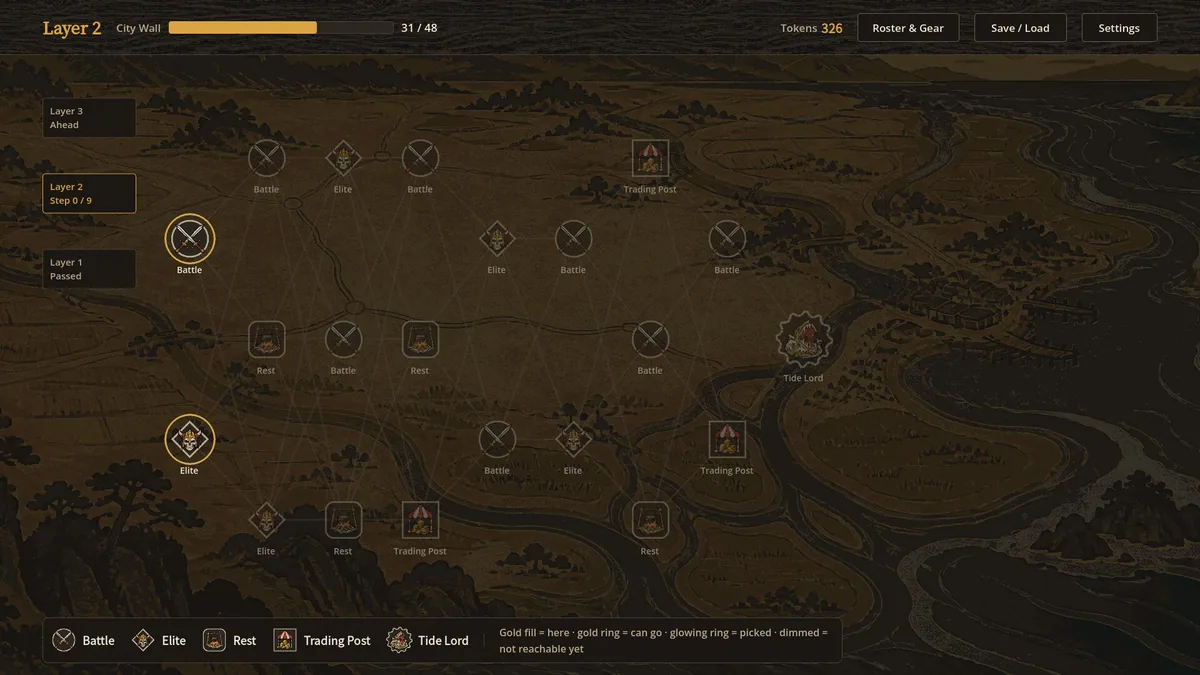
The Eagle trainer for Tidemark brings dice results, action points, party roles together for the Windows PC release. Press Insert during play to open the menu, choose a control and return to the current session. Additional controls cover ability costs, turn ledger, and enemy intent during play.
- Dice Results
- Action Points
- Party Roles
- Ability Costs
- Turn Ledger
- Enemy Intent
- Run Route
- Tide Progress
About the game
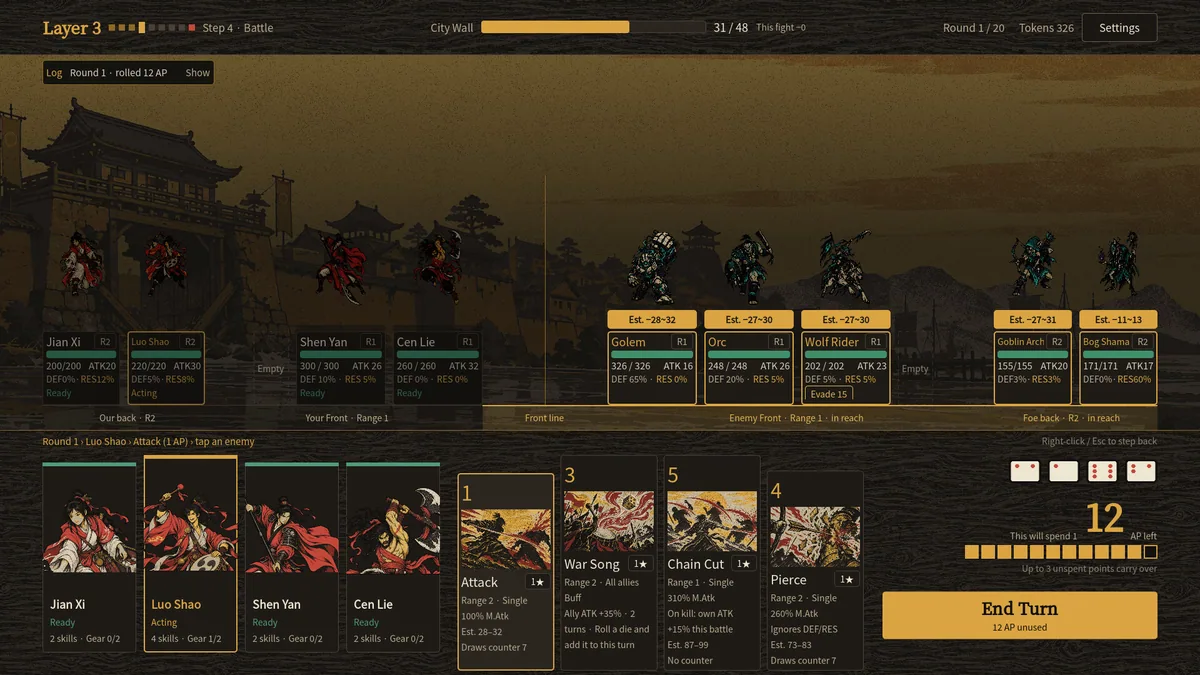
Tidemark is a dice-driven turn-based party roguelike. Rolls supply action points, forcing the player to choose which character acts now and who waits. Party composition changes how useful each point becomes.
A good attack may use the last point needed for protection. Spreading actions evenly can also waste a chance to finish a dangerous foe. Reviewing how turns unfolded helps develop a plan for low and high rolls alike.
Official game page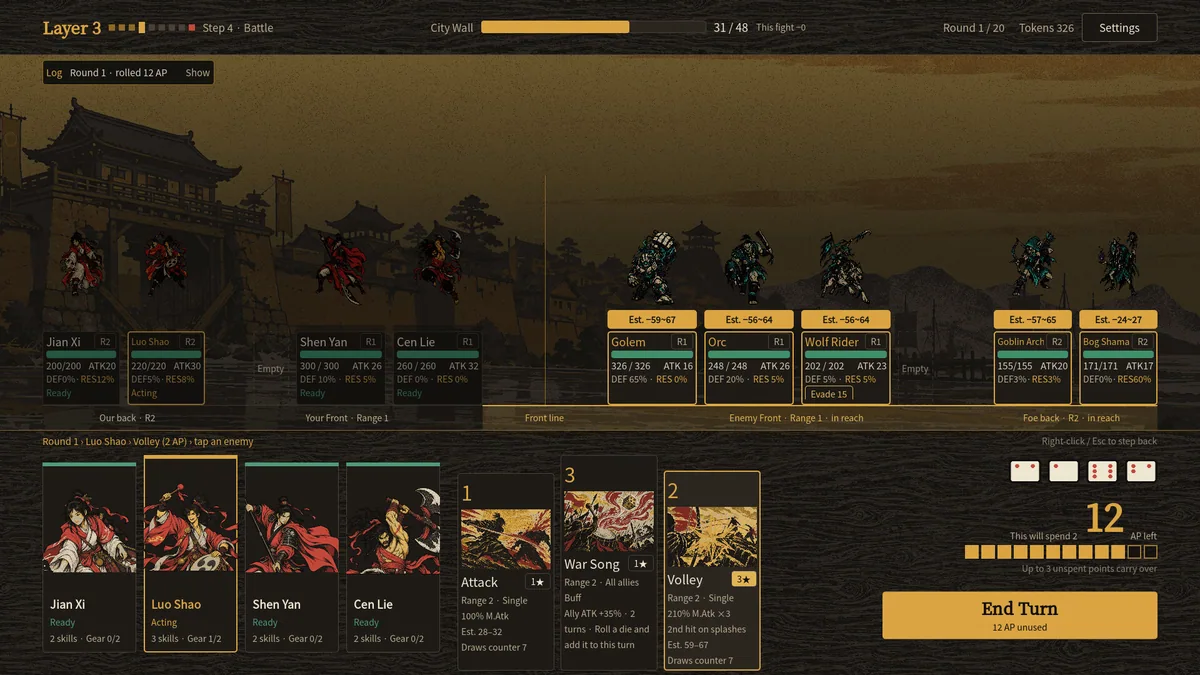


Using the Tidemark trainer
Open the Eagle menu with Insert at the start of a turn to inspect dice, action points and party abilities. The turn ledger records which choices produced a safe outcome. Use the role panel before spending the final point.